How to Get Your FAB Bank Statement Online?


 April 6, 2026 7:37 pm

Managing your finances starts with knowing where your money goes. Whether you’re tracking expenses, applying for a visa, or preparing for tax season, accessing your FAB bank statement quickly and securely is essential. First Abu Dhabi Bank (FAB), the UAE’s largest bank, offers multiple convenient ways to retrieve your account history—both digitally and physically.
In this complete guide, you’ll discover 5 proven methods to get your FAB statement online and offline. We’ll walk you through step-by-step instructions, compare each option, highlight common mistakes to avoid, and answer frequently asked questions. By the end, you’ll know exactly which method suits your needs best.
Why You Need Your FAB Bank Statement Regularly
Before diving into the how, let’s understand the why. Your FAB bank statement isn’t just a record of transactions—it’s a financial tool used for multiple purposes:
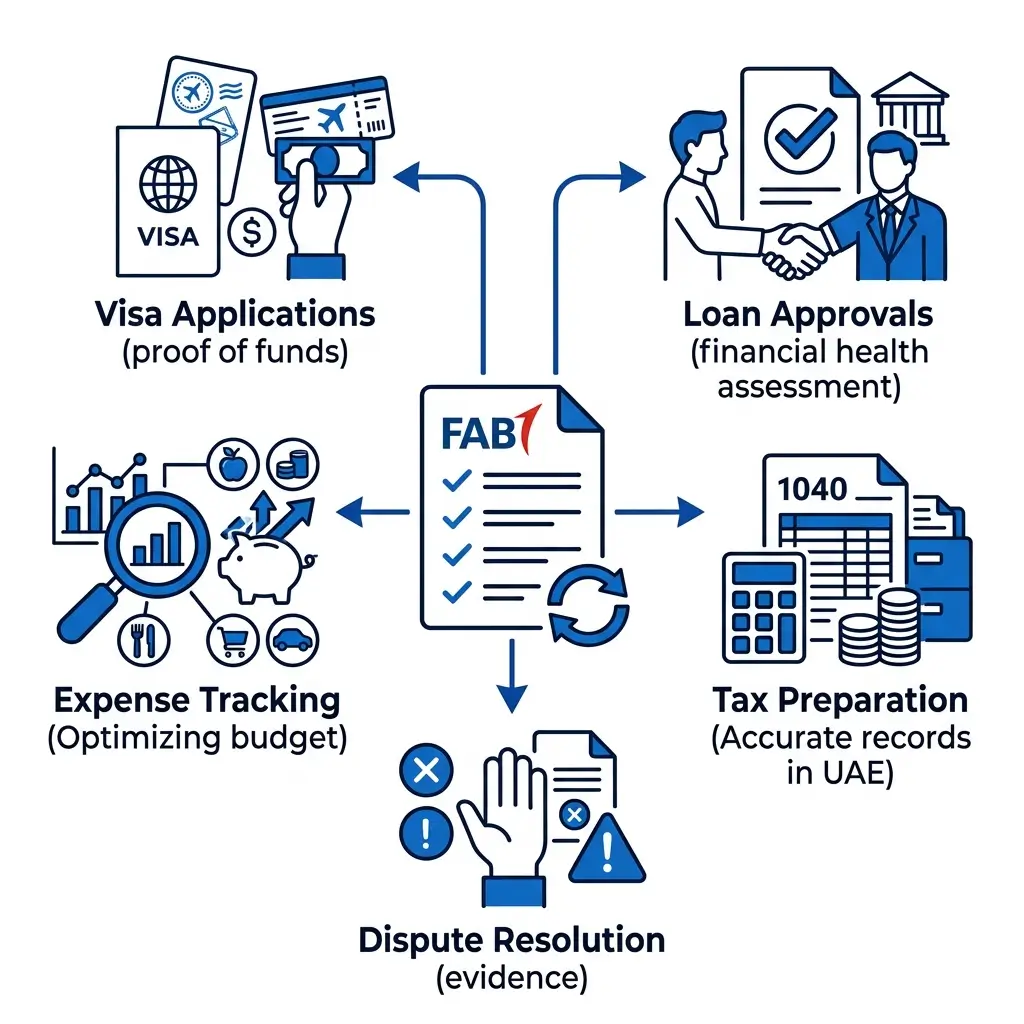
- Visa Applications: Most embassies require 3–6 months of stamped bank statements as proof of funds
- Loan Approvals: Banks assess your financial health through transaction history
- Tax Preparation: Accurate records simplify annual tax filings in the UAE
- Expense Tracking: Identify spending patterns and optimize your budget
- Dispute Resolution: Provide evidence for unauthorized transactions or billing errors
According to the UAE Central Bank, maintaining regular access to your financial records is a key component of personal financial management and consumer protection.
Method 1: FAB Online Banking
Best for: Comprehensive records, business accounting, and official documentation
Accessing your FAB bank statement online through the web portal gives you the most flexibility. You can view up to 12 months of history, customize date ranges, and export in multiple formats.

Step-by-Step Guide:
- Visit www.bankfab.com and click “Login” in the top right corner
- Enter your username and password, then click “Sign In”
- Navigate to “Accounts” in the main menu bar
- Select“Statements” from the dropdown menu
- Choose your desired account from the list
- Set your date range (you can select custom periods up to 12 months)
- Click“Download PDF” or “Export to Excel”
- Save the file to your secure folder
Pro Tips:
- Use Excel format for data analysis and budgeting spreadsheets
- Use PDF format for official submissions and printing
- Bookmark the login page for faster access
Method 2: FAB Mobile App
Best for: On-the-go access, quick downloads, and mobile convenience
The FAB Mobile Banking app puts your statements in your pocket. Available for iOS and Android, this method offers the same features as online banking with smartphone optimization.

Step-by-Step Guide:
- Open the FAB Mobile Banking app on your smartphone
- Log in using your credentials, fingerprint, or Face ID
- Tap“Accounts” at the bottom navigation menu
- Select“Statements” from the account options
- Pick your account and statement period
- Tap“Download PDF”
- Access the file in your phone’s download folder or “Share” via email
Additional Features:
- “Insights” section tracks spending patterns by category
- Instant sharing to email or cloud storage
- Biometric login for enhanced security
Download the app from the App Store or Google Play.
Method 3: ATM Mini-Statement
Best for: Quick transaction verification without internet access
Need immediate proof of recent activity? The ATM mini-statement provides your last 5–10 transactions instantly—no login required.

Step-by-Step Guide:
- Insert your FAB debit/credit card into any FAB ATM
- Enter your 4-digit PIN
- Select“Mini Statement” from the main menu
- Wait for the thermal printer to generate your receipt
- Collect your card and printed statement
Important Notes:
- Shows only recent transactions (last 5–10 entries)
- Not suitable for visa applications or official use
- Free of charge at all FAB ATMs across the UAE
- Works even during internet outages
Method 4: Visit a FAB Branch
Best for: Stamped official statements, legal documents, and visa applications
When you need an authenticated, stamped bank statement, visiting a branch is your only option. This method provides official documentation accepted by government entities and embassies.

Step-by-Step Guide:
- Locate your nearest FAB branch using the branch locator
- Bring your Emirates ID and FAB card
- Request at the counter: “I need a printed bank statement for [date range]”
- Specify the account and exact period needed
- Receive your stamped statement within 5–10 minutes
When to Use This Method:
- Visa applications requiring stamped documents
- Legal proceedings needing authenticated records
- Loan applications with traditional banks
- Company audits requiring official verification
Method 5: Email E-Statements Setup
Best for: Automated monthly delivery and record archiving
Set up automatic e-statements to receive your FAB bank statement via email every month. This ensures you never miss a statement and maintains a digital archive.

How to Set Up:
- Log in to FAB Online Banking or Mobile App
- Navigate to “Profile” or “Settings”
- Select“E-Statement Preferences”
- Choose“Email Statements”
- Verify your email address
- Select statement frequency (monthly/quarterly)
- Confirm activation
E-Statement Password Format:
Your emailed PDF is password-protected for security. The password format is:
- Last 4 digits of your account number + Birth day and month (DDMM)
Example: If your account ends in 1234 and your birthday is February 1st, your password is: 12340102
Which Method is Best?
| Feature | Online Banking | Mobile App | ATM | Branch Visit | Email Setup |
|---|---|---|---|---|---|
| Speed | Instant | Instant | 2 minutes | 10–15 minutes | Monthly auto |
| Cost | Free | Free | Free | Free | Free |
| Format | PDF/Excel | Printed | Stamped Paper | PDF (Email) | |
| History | 12 months | 12 months | 5–10 transactions | Any period | From setup date |
| Official Use | Limited | Limited | No | Yes | Limited |
| Best For | Analysis | Convenience | Quick checks | Legal docs | Automation |
How to Open Your Password-Protected PDF?
When you get your FAB bank statement online, the PDF file is encrypted for security. Here’s how to access it:
- Download the PDF to your device
- Double-click to open (Adobe Reader or browser)
- Enter the password when prompted
- Use the format: [Last 4 digits of account][DDMM of birthdate]
Example: Account ending 5678, born March 15th → Password: 56781503
Troubleshooting:
- Ensure you’re using the account number, not card number
- Use leading zeros for single-digit days/months (e.g., 05 not 5)
- Contact support if you’ve forgotten your registered birthdate
Common Mistakes to Avoid
Even simple processes have pitfalls. Avoid these critical errors when accessing your FAB statement:
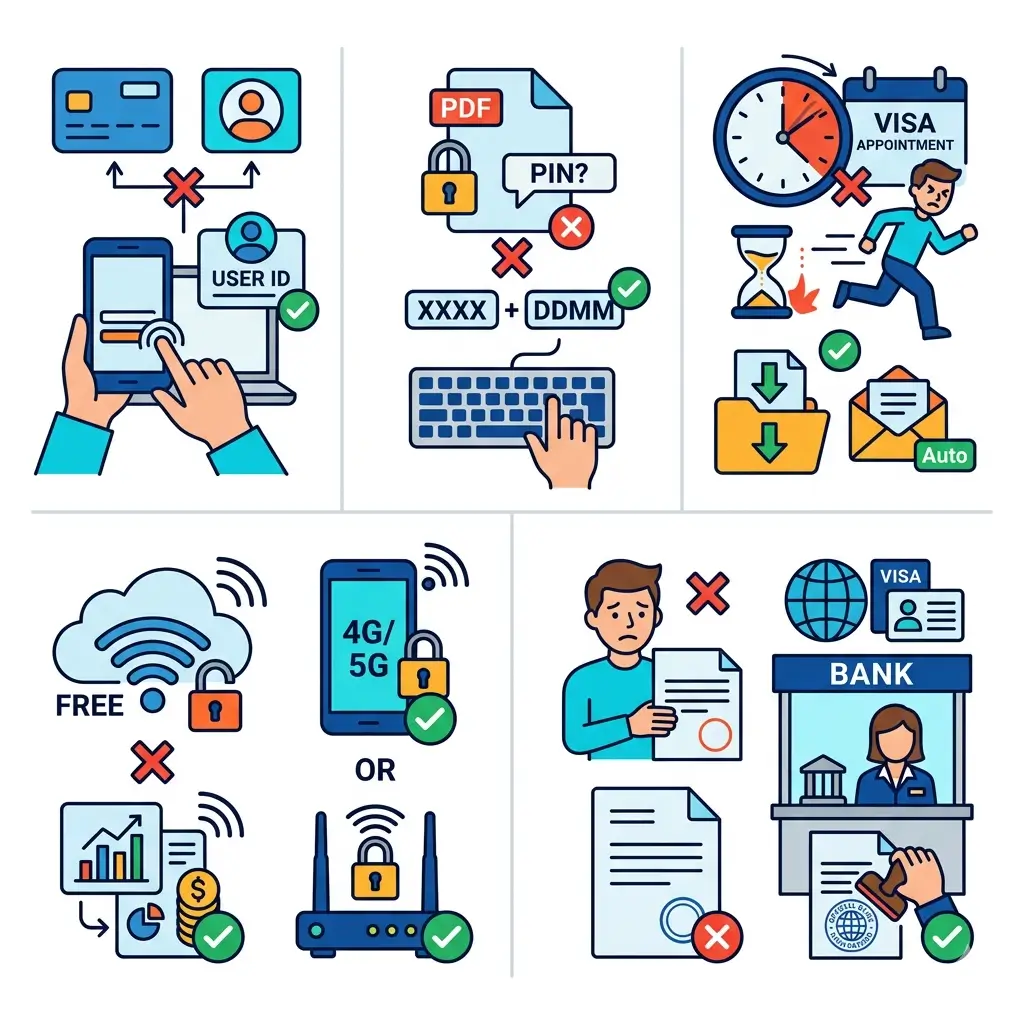
1. Using Wrong Login Credentials
- Mistake: Confusing your card number with customer number.
- Solution: Your customer number is provided during account opening. If forgotten, use the “Forgot Username” link or call 600 52 2235.
2. Ignoring Password Protection
- Mistake: Trying to open PDFs without the correct password format.
- Solution: Always use the last 4 digits + DDMM format. Write it down securely if needed.
3. Waiting Until the Last Minute
- Mistake: Requesting statements the day before your visa appointment.
- Solution: Download statements monthly or set up email automation to avoid rush fees at branches.
4. Using Unsecured Networks
- Mistake: Accessing FAB bank statement online via public Wi-Fi.
- Solution: Use mobile data or secure home networks to protect your financial data.
5. Not Verifying Stamped Copies
- Mistake: Accepting unstamped statements for official use.
- Solution: Always visit a branch for embassy or legal submissions requiring authentication.
Benefits & Drawbacks of Each Method
Online Banking
Benefits:
- Export to Excel for financial analysis
- Print multiple months at once
- Highest security with encrypted connection
Drawbacks:
- Requires computer access
- Not suitable for instant stamped copies
Mobile App
Benefits:
- Access anywhere, anytime
- Biometric security features
- Instant sharing options
Drawbacks:
- Smaller screen for detailed review
- Requires smartphone storage space
ATM Mini-Statement
Benefits:
- No internet required
- Instant physical copy
- Available 24/7
Drawbacks:
- Limited transaction history
- No digital copy provided
- Thermal paper fades over time
Branch Visit
Benefits:
- Official stamped documentation
- Human assistance for complex requests
- Access to archived records beyond 12 months
Drawbacks:
- Requires physical travel
- Potential waiting times
- Limited to branch operating hours
FAQs About How to Get Your FAB Bank Statement Online?
How long does it take to generate an online statement?
Answer: Statements via online banking or the mobile app generate instantly. You can view and download them immediately after selecting your date range—no waiting time required.
Can I download multiple months at once?
Answer:Yes. When choosing your statement period, select a custom date range that spans multiple months. The system compiles all transactions into one comprehensive PDF or Excel file, making it ideal for visa applications requiring 6 months of history.
Is there a fee for downloading my statement?
Answer:No. FAB does not charge any fees for accessing or downloading bank statements through online banking, mobile app, ATMs, or branches. This applies to both digital and printed formats.
What if I need an official stamped statement?
Answer: Visit any FAB branch with your Emirates ID and FAB card. Request a printed statement specifying the date range. The teller prints and stamps it on the spot—usually within 5–10 minutes. This service is free of charge.
How many recent transactions are on a mini-statement?
Answer: The ATM mini-statement shows your last 5 to 10 transactions, including withdrawals, deposits, transfers, and purchases. It’s designed for quick verification, not comprehensive record-keeping.
Can I email my statement to someone else?
Answer:Yes. In the mobile app, after downloading a PDF, use the “Share” or “Email” option to send your statement to any valid email address. Ensure the recipient is trustworthy as the document contains sensitive financial information.
What do I do if I can’t log in to online banking?
Answer: Reset your password via the “Forgot Password” link on the login page. Alternatively, contact FAB support:
- UAE Helpline: 600 52 2235
- International: +971 2 681 1511
- Email:[email protected]
How far back can I retrieve statements online?
Answer: You can access up to 12 months of statements online. For older records, visit a branch and request archived statements. Branch staff can typically retrieve records spanning several years, though this may take additional processing time.
Can I request statements in Excel format?
Answer:Yes. Online banking allows you to export statements in both PDF and Excel formats. Excel files are perfect for data analysis, budgeting, and importing into accounting software.
Is my online statement legally valid?
Answer: For most personal uses, yes. However, government entities, embassies, and courts typically require physically stamped statements from a branch. Always verify requirements with the requesting organization.
Conclusion
Accessing your FAB bank statement is quick, secure, and completely free. Choose online banking for detailed records, the mobile app for convenience, or visit a branch for official stamped copies. With 24/7 support available, managing your finances has never been easier.